Learn how to build pages in your sidebar with Documents.
The DevXP engineering team hosts office hours every Thursday at 11 a.m.
Pacific Time where we answer your questions live and help you get up and
running with Flatfile. Join
us!
Documents are standalone webpages for your Flatfile . They can be rendered from .Often used for getting started guides, Documents become extremely powerful with dynamically generated content that stays updated as Events occur.
Flatfile also allows you to use HTML tags in your Markdown-formatted text.
This is helpful if you prefer certain HTML tags rather than Markdown syntax.
import api from "@flatfile/api";export default function flatfileEventListener(listener) { listener.on("upload:completed", async ({ context: { spaceId, fileId } }) => { const fileName = (await api.files.get(fileId)).data.name; const bodyText = `# Welcome ### Say hello to your first customer Space in the new Flatfile! Let's begin by first getting acquainted with what you're seeing in your Space initially. --- Your uploaded file, ${fileName}, is located in the Files area.`; const doc = await api.documents.create(spaceId, { title: 'Getting Started', body: bodyText }); });}
See full code example in our flatfile-docs-kitchen-sink Github repo.This Document will now appear in the sidebar of your Space.In this example, we create a Document when a file is uploaded, but you can also create Documents in response to any other Event. Read more about the different Events you can respond to.
Actions are optional and allow you to run custom operations in response to a user-triggered event from within a Document.Define Actions on a Document using the actions parameter when a document is created:
import api from "@flatfile/api";export default function flatfileEventListener(listener) { listener.on("upload:completed", async ({ context: { spaceId, fileId } }) => { const fileName = (await api.files.get(fileId)).data.name; const bodyText = `# Welcome ### Say hello to your first customer Space in the new Flatfile! Let's begin by first getting acquainted with what you're seeing in your Space initially. --- Your uploaded file, ${fileName}, is located in the Files area.`; const doc = await api.documents.create(spaceId, { title: "Getting Started", body: bodyText, actions: [ { label: "Submit", operation: "contacts:submit", description: "Would you like to submit the contact data?", tooltip: "Submit the contact data", mode: "foreground", primary: true, confirm: true, }, ], }); });}
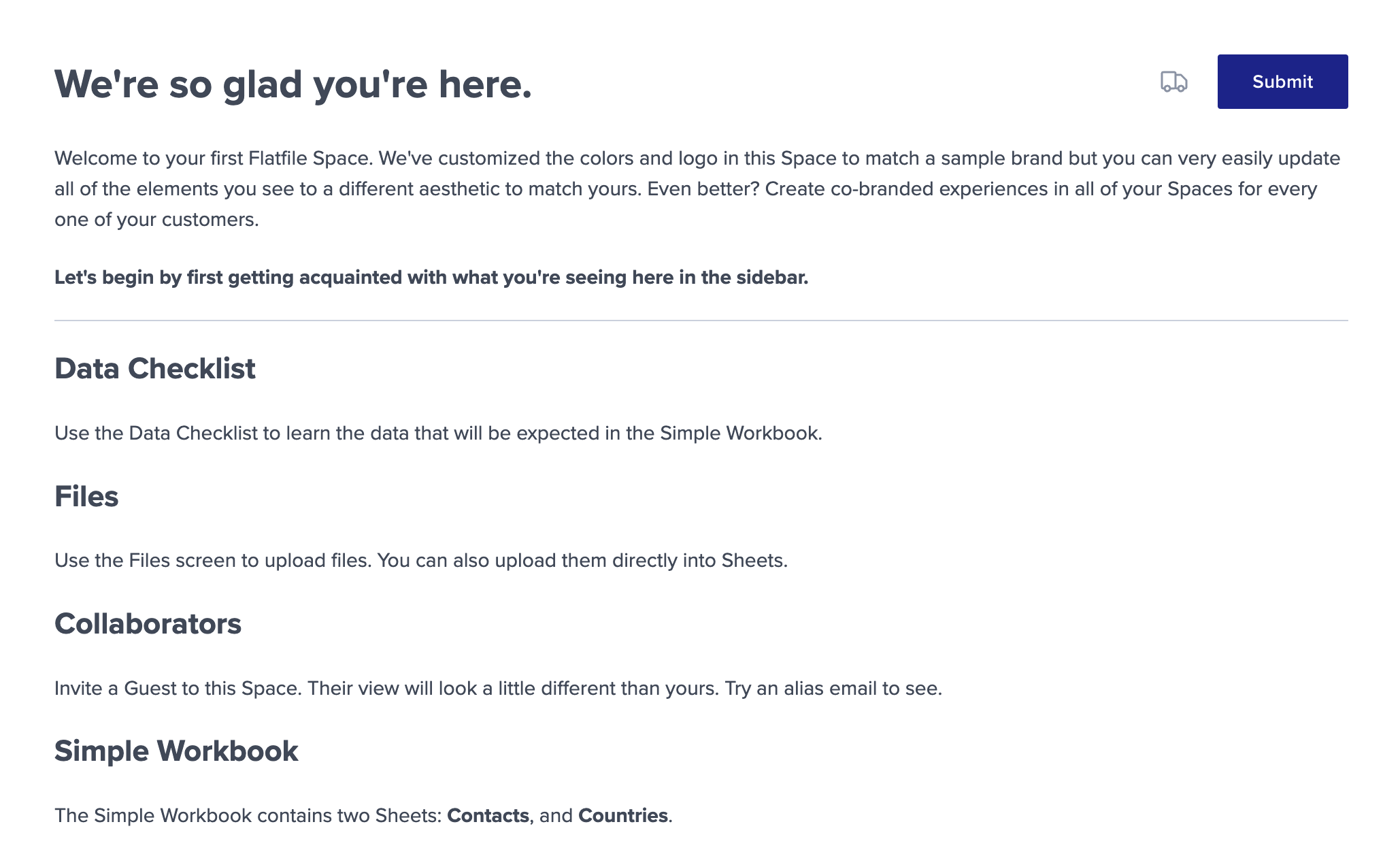
See full code example in our flatfile-docs-kitchen-sink Github repo.Then configure your listener to handle this Action, and define what should happen in response. Read more about Actions and how to handle them here.Actions appear as buttons in the top right corner of your Document:
Documents have an optional treatments parameter which takes an array of treatments for your Document. Treatments can be used to categorize your Document. Certain treatments will cause your Document to look or behave differently.
Giving your Document a treatment of "ephemeral" will cause the Document to appear as a full-screen takeover, and it will not appear in the sidebar of your Space like other Documents. You can use ephemeral Documents to create a more focused experience for your end users.
Currently, "ephemeral" is the only treatment that will change the behavior
of your Document. Other treatments will not affect how your Document behaves,
but can be used for your own purposes to categorize and describe your
Documents in code.
You can embed a Sheet into your Document by adding an <embed> HTML entity to your markdown body, and passing a sheet ID, workbook ID, and name. You can also specify whether the embedded Sheet is expanded or collapsed when the document is loaded.
You can include as many embedded Sheets in your Document as you like, but end
users will only be able to expand a maximum of 10 embedded Sheets at once.
const doc = await api.documents.create(spaceId, { title: "Getting started", body: ` # Welcome Here is an embedded Sheet: <embed type='embedded-sheet' name='Contacts' defaultExpanded='true' sheetId='your_sheet_id' workbookId='your_workbook_id'> Here is another embedded Sheet: <embed type='embedded-sheet' name='Countries' sheetId='us_sh_TVW95224' workbookId='us_wb_8e0z52gI'> `,});